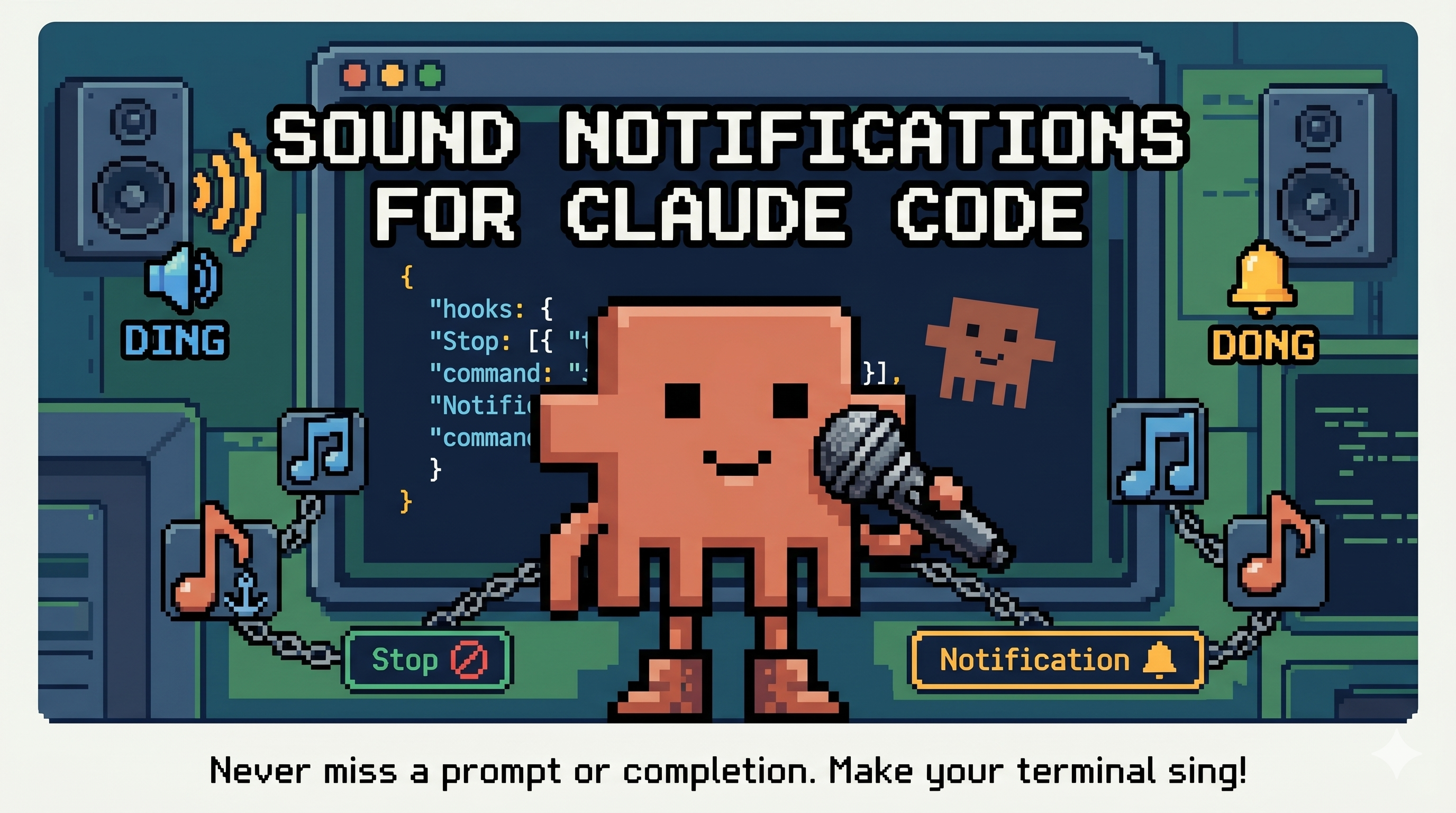
You kick off a big refactor in Claude Code, switch over to Slack, and twenty minutes later realise Claude has been sitting there waiting for permission the entire time. Or worse, it finished ages ago and you have been refreshing the terminal for no reason. Sound familiar?
The fix is surprisingly simple: make it ding.
Claude Code has a hooks system that lets you run shell commands in response to lifecycle events. Two of those events are exactly what we need. Stop fires when Claude finishes its work, and Notification fires when Claude is blocked and waiting for your input (a permission prompt, a clarifying question, anything that requires you before it can continue). Wire each one up to a different sound and you will never miss either signal again.
How Hooks Work
Hooks are configured in .claude/settings.json under a hooks key. Each hook maps an event name to an array of hook definitions. A hook definition specifies a type (currently "command" is the supported type) and the command to run.
The basic shape:
{
  "hooks": {
    "EventName": [
      {
        "type": "command",
        "command": "your shell command here"
      }
    ]
  }
}
Claude Code runs the command in a shell whenever the event fires. The command runs asynchronously and any output is not shown to the user, so it is well suited to fire-and-forget operations like playing a sound.
Playing Sounds on macOS
On macOS, afplay is the simplest option. It is a built-in command-line tool that plays an audio file and returns immediately once playback finishes. You can use any audio file: the system sounds in /System/Library/Sounds/ are a convenient starting point since they are always present.
To hear what is available:
ls /System/Library/Sounds/You will get a list of .aiff files: Basso.aiff, Blow.aiff, Bottle.aiff, Funk.aiff, Glass.aiff, Hero.aiff, Morse.aiff, Ping.aiff, Pop.aiff, Purr.aiff, Sosumi.aiff, Submarine.aiff, Tink.aiff.
A quick way to audition them:
afplay /System/Library/Sounds/Glass.aiff
afplay /System/Library/Sounds/Hero.aiff
afplay /System/Library/Sounds/Funk.aiff
Pick two that feel meaningfully different from each other. The distinction matters because they signal different things: one means "come back, I am done", the other means "come back now, I need you".
Configuring the Hooks
Open .claude/settings.json and add the hooks block alongside your existing configuration. Here is a minimal example using two sounds:
{
  "hooks": {
    "Stop": [
      {
        "type": "command",
        "command": "afplay /System/Library/Sounds/Glass.aiff"
      }
    ],
    "Notification": [
      {
        "type": "command",
        "command": "afplay /System/Library/Sounds/Funk.aiff"
      }
    ]
  }
}
Stop fires when Claude finishes a task and returns control to you. Notification fires when Claude raises a prompt that requires your input before it can proceed.
The two-sound distinction is the key design decision here. If both events played the same sound, you would know Claude needs attention but not whether it is waiting or done. Different sounds let you gauge urgency without looking at the screen.
A Full Settings File Example
For context, here is what the full settings.json might look like with hooks added alongside permissions:
{
  "permissions": {
    "allow": [
      "Read(*)",
      "Glob(*)",
      "Grep(*)"
    ],
    "ask": [
      "Edit(*)",
      "Write(*)",
      "Bash(npm *)"
    ]
  },
  "hooks": {
    "Stop": [
      {
        "type": "command",
        "command": "afplay /System/Library/Sounds/Glass.aiff"
      }
    ],
    "Notification": [
      {
        "type": "command",
        "command": "afplay /System/Library/Sounds/Funk.aiff"
      }
    ]
  }
}
The hooks block sits alongside permissions at the top level. The rest of your settings are unaffected.
Using Your Own Sound Files
The system sounds work well, but you can point afplay at any .aiff, .mp3, .wav, or .m4a file. If you have a preferred notification sound or want something more subtle, use an absolute path:
"command": "afplay /Users/yourname/sounds/done.mp3"One thing worth noting: the path must be absolute. Hooks run in a shell context that does not necessarily inherit your working directory, so relative paths are unreliable.
If you want to control the volume without changing your system volume, afplay accepts a -v flag with a value between 0 and 1:
"command": "afplay /System/Library/Sounds/Glass.aiff -v 0.5"On Other Platforms
afplay is macOS-only. On Linux, paplay (PulseAudio) or aplay (ALSA) are common equivalents. On Windows under WSL, you can call PowerShell directly:
"command": "powershell.exe -c (New-Object Media.SoundPlayer 'C:\\Windows\\Media\\notify.wav').PlaySync()"The hook mechanism itself is platform-agnostic. Any command that plays a sound will work.
Checking the Other Available Events
Stop and Notification cover the two most useful cases, but Claude Code supports other hook events. PreToolUse and PostToolUse fire before and after each tool call, which is useful for logging or blocking specific tool usage. SubagentStop fires when a subagent completes. For notification purposes, Stop and Notification are the right pair to start with.
The hooks documentation is worth reading if you want to go further. Hooks can also be used for things like posting to a Slack channel, writing a log entry, or triggering a webhook when Claude finishes a long-running task. The command field accepts any valid shell command, so the scope is broad.
The Result
After this setup, the workflow shifts noticeably. Start a task, switch to something else, and the sound brings you back at the right moment. The Notification sound is the more important of the two: it means Claude is blocked and waiting, so the sooner you respond the better. The Stop sound is lower urgency since Claude has already wrapped up and nothing is blocked.
Two sounds, five lines of JSON, and Claude Code becomes considerably less demanding of your attention.
Comments